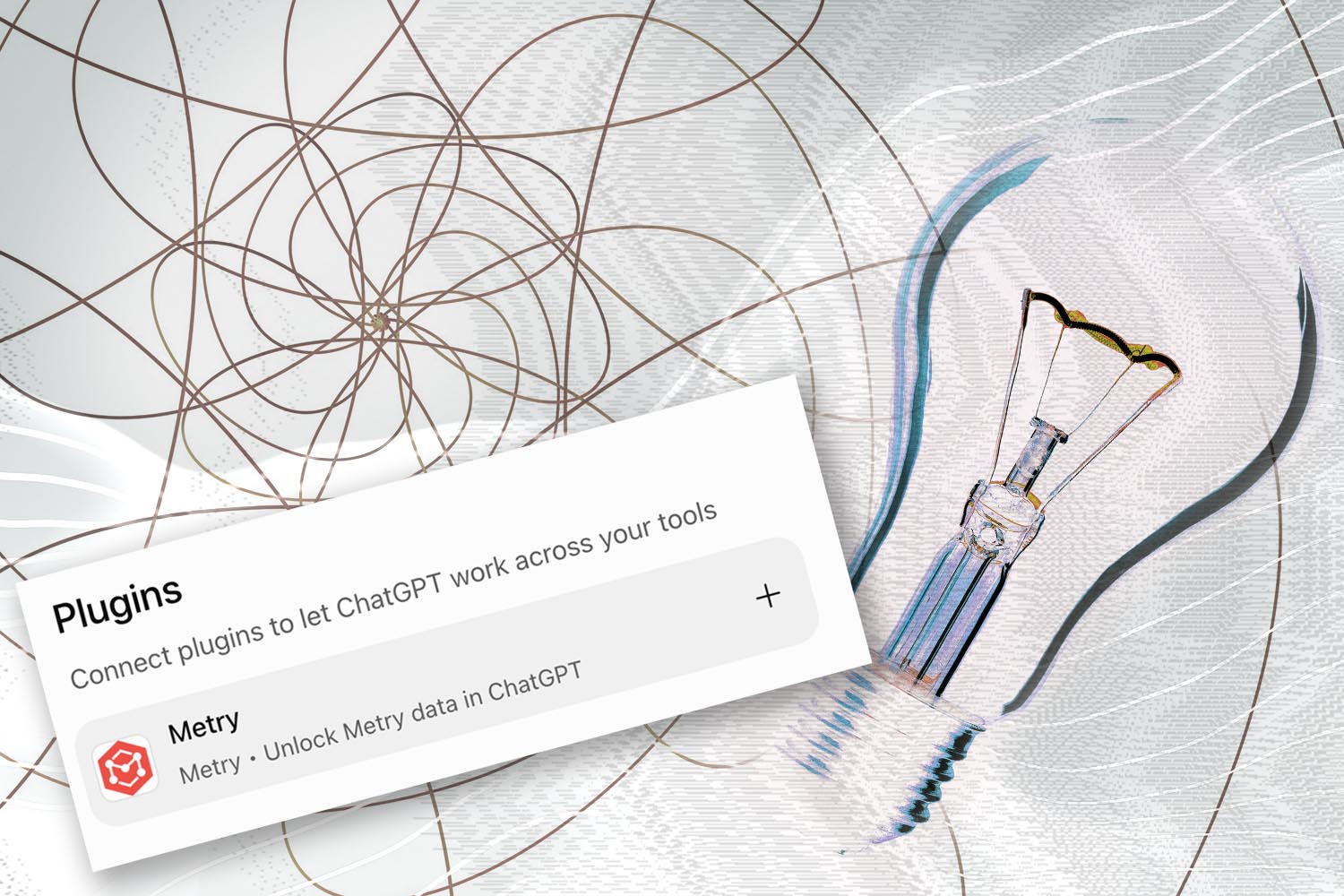
Metry is now available in ChatGPT – here is what you can do with your energy data
One click in the plugin directory, a login with your usual Metry account, and you can start asking your portfolio questions in everyday language.
Metry is now listed in the ChatGPT plugin directory, which means anyone can find the connection and switch it on themselves. Search for Metry on chatgpt.com or in the desktop app, connect it and log in with your usual Metry account. Since it connects through the Metry MCP server, no developer needs to be involved, and there is no server URL to paste in. After that your energy data sits in the same tool you probably already have open.
The connection lets ChatGPT fetch your collected readings and meter details the moment you ask for something. There is no file to export, no view to track down in the portal and nobody to ask for an extract. It works in the browser, in the desktop app and on your phone, and even in voice mode.
Four things you can do with your energy data in ChatGPT
The connection does more than answer in the chat window. ChatGPT can build on the figures as well, in the formats and modes you already use for other things. For example:
Turn the answer into a finished file
In Work mode, ChatGPT works in several steps across your connections and files and delivers a spreadsheet, a presentation or a document. For example; if you’ve just acquired a new portfolio, you can ask for consumption per meter and energy type across the new properties, compiled property by property, and get back something you can send on to your management team the same afternoon.
Weigh your energy data against outside sources
In deep research mode, ChatGPT spends longer on a question and can draw on both your energy data and sources beyond it in the same run. How did electricity costs per property follow price movements last winter? How does our consumption compare with the levels the industry reports for similar buildings?
Get an answer while you are standing in the building
Voice mode reaches the same connections as text mode, on the web, iOS and Android, which means the question “has Hammarby 7 received any values this week?” can be asked even if you’re standing with your hands full on-site. The answer stays in the chat as text for when you are back at your desk.
Pull the figures into the spreadsheet you are already working in
ChatGPT is available as an add-in for Excel, Word and PowerPoint and reaches the same connections there. You can open the budget file and ask for actual consumption per property for the same period in the column next to the budgeted one.
If you have several connections switched on at once, you point to the one you mean by typing @ and selecting Metry in the prompt box. Which of the modes above you can reach depends on the ChatGPT plan you have.
It gets better the more you use it
ChatGPT remembers things between conversations. Tell it once that “the King” is your internal nickname for the building on King’s Street, that follow-up is done property by property and that you report on calendar years, and it will not need repeating in every question. After a couple of weeks the difference shows: the questions get shorter and the answers land right away.
If you want to steer it more deliberately, the same things can be written into your custom instructions, which apply across all your chats. That is a good place to jot down what you want 100% consistency in; such as the period being stated in the answer, or the heat pump meters should be handled separately.
The answer can be passed on as a link
A chat can be shared with a colleague as a link. They see the question you asked and the answer you got, which is a different thing from a screenshot of a chart in an email.
The difference is that the question follows with it; whoever reads it can see which period you looked at and how you phrased things, and can tell you that you missed a sub meter before the figure ends up in a decision. In practice it is also how colleagues learn which prompts give good answers, without anyone having to run an educational session for them.
“Sounds great. But… where do I start?”
Whether or not you are used to writing prompts, we think it is wise to start simple. The best way to understand what the connection does is to ask something where you roughly know what the answer should look like, so you get a feel for how it works and can check that the answer holds up.
Three suggestions to start with:
Have all meters at Ekbacken received values this month? The monthly check, without logging in anywhere.
Show district heating consumption month by month for the properties in Hammarby, compared with the same period last year. The material for Thursday’s meeting, pulled together on your way there.
Compile consumption for the whole portfolio last year by energy type. The starting point for reporting, instead of four separate exports to paste together.
What separates this from static dashboards and data exports is that you can keep asking and dig deeper. If a figure looks odd you ask for the month next to it, for a different period, or for a list of the meters behind it.
How to connect Metry’s MCP server to ChatGPT
Search for Metry in the plugin directory in ChatGPT (or click here), connect it and log in. That is all there is to it.
The connection authenticates with OAuth against your existing Metry account, and ChatGPT gets exactly the permissions that account already has. No new permissions are added, and nobody needs to create a separate account or share a key. Access is read only as well, so neither you nor ChatGPT can change or delete anything in Metry that way. The permission structure you have already built applies just as usual – good to know when IT asks about security!
Not a Metry client yet? Let’s get started with your data collection! Get in touch and we will go through which utility providers and sub meters you need data from, and help you get going.